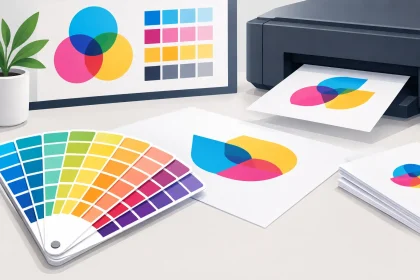
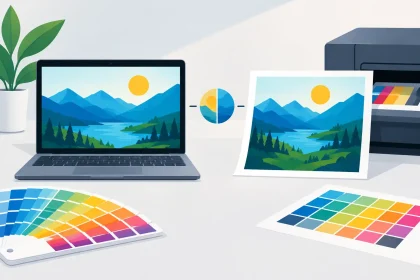
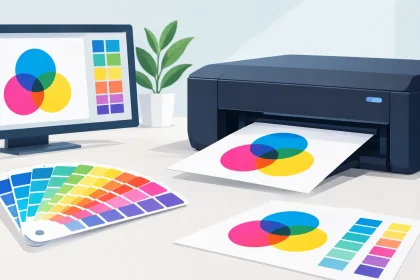
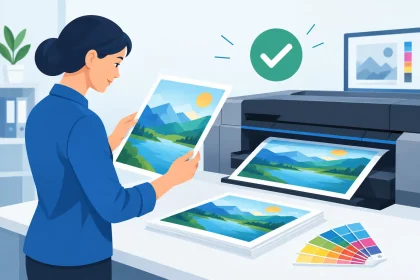
A bright logo on your screen can look noticeably different once it is printed on a business card, flyer or pull-up banner. That is why customers often ask, should I use CMYK artwork before uploading a file? For most commercial print jobs, the answer is yes. Preparing artwork in CMYK gives you a more realistic view of how colours are likely to reproduce on paper, card, vinyl and other printed materials.
It is not a promise that every shade will look identical to your monitor. Screens and printing presses create colour in completely different ways. But starting with the right colour mode removes a common source of surprises and helps your finished collateral look professional, consistent and ready to represent your business.
Should I use CMYK artwork for every print job?
For standard full-colour printing, CMYK is the right choice. CMYK stands for cyan, magenta, yellow and black, the four inks combined by a commercial press to create the colours you see on a printed piece. It is the colour model used for products such as business cards, flyers, letterheads, envelopes, drink coasters, fridge magnets and banners.
RGB, on the other hand, is built for screens. It uses red, green and blue light, which can produce very bright blues, greens, pinks and oranges. Your laptop, mobile and monitor can display colours that ink on paper simply cannot match. An RGB file can still be converted for print, but the conversion may dull or shift highly saturated colours.
So, if you are creating artwork specifically for print, set it up in CMYK from the beginning. If your designer has supplied an RGB PDF, do not panic. It may still print well, particularly if the design uses restrained colours. It is worth checking the file before placing an order, especially when brand colour accuracy matters.
Why RGB colours can change in print
Think of RGB as coloured light shining out from a screen. It adds light together, making vivid colours possible. CMYK works by placing tiny dots of ink onto a surface. The paper then reflects light back to your eye. Because it is a different process, the available colour range is smaller.
This is most noticeable with electric blue, neon green, vivid purple and fluorescent pink. A bright RGB turquoise, for example, may print as a more muted teal. Deep blacks can also behave differently. On screen, black is simply the absence of light. In print, black is an ink, and large black areas may need a richer CMYK build to avoid looking washed out.
Paper stock has a role too. A glossy flyer generally makes colours appear sharper and more vibrant than an uncoated letterhead. Natural or textured stocks can soften fine detail and absorb ink differently. None of this means one option is better than another. It means your artwork, stock and intended use should work together.
Start with the final product, not the screen
The best colour choice depends on what you are printing and where it will be used. A real estate agent’s business cards may need a clean, trustworthy navy and clear small text. A café coaster may need a strong logo that remains recognisable after regular handling. An event banner needs high contrast that can be read quickly from several metres away.
In each case, focus first on clarity and brand recognition. Do not rely on a fluorescent screen colour as the only thing making the design stand out. Use strong contrast, clear type, sufficient white space and images that remain effective when converted to CMYK.
If you are matching a very specific brand colour, such as an established corporate blue or a signature restaurant orange, speak with your printer before production. Standard CMYK printing is ideal for most branded materials and keeps projects affordable, but it is not the same as printing a dedicated spot colour. Some colours can be approximated closely, while others may require a different production method or a realistic expectation of variation.
How to prepare CMYK artwork correctly
Changing a file from RGB to CMYK is a good first step, but it is not the whole job. The artwork also needs to meet practical print requirements. A file that looks correct in the design program can still produce disappointing results if images are low resolution, text sits too close to the edge, or bleed has been missed.
Set your document to the finished product size and include the required bleed area. Bleed is extra artwork that extends beyond the trim edge, allowing the piece to be cut neatly without unwanted white lines. Keep essential text, logos and contact details safely inside the trim area rather than close to the edge.
Use high-resolution images suitable for print. As a general guide, supplied images should be 300 dpi at their final printed size. Enlarging a small web image may make it look acceptable on a screen, but it can appear blurry or pixelated once printed. This matters particularly for menus, promotional flyers and large-format signage where customers need to read your message quickly.
Exporting a press-ready PDF is usually the most reliable option. Embed or outline fonts where appropriate, check that images are included, and avoid adding crop marks unless they have been requested. Before uploading, review the PDF at 100 per cent zoom. Look for spelling errors, missing text, fuzzy images, unexpected white borders and elements that have shifted position.
Check black text and large black areas
Small black text should generally use 100 per cent black only. Adding cyan, magenta and yellow to fine text can create registration issues, where tiny ink variations make lettering look soft or coloured around the edges.
For a large, solid black background, a rich black mix may produce a denser result. The ideal build can vary by stock and print process, so it is sensible to follow your printer’s artwork guide or ask the production team for advice. This is one area where a quick check before ordering can save a costly reprint.
Keep transparency and effects under control
Drop shadows, transparent overlays, glows and blend modes can sometimes change when a PDF is processed for print. Most modern PDF workflows handle these effects well, but complicated files deserve a final visual inspection. If an effect is central to your design, flattening it carefully or supplying a high-quality PDF can reduce the chance of an unexpected result.
When you might not need to create a CMYK file yourself
Not every customer needs to become a colour-management expert. If you have professionally designed artwork, your designer may already supply a print-ready CMYK PDF. If you are working from a simple office document or a logo file supplied in RGB, the print team can often assess whether it is suitable and advise on the best next step.
The main point is not to assume that a screen preview is a print proof. A PDF can be converted from RGB to CMYK during production, but colours may change in ways you did not intend. Providing CMYK artwork gives you more control earlier in the process, when changes are easier and cheaper to make.
There are also situations where RGB is completely appropriate. Digital ads, social media graphics, websites, presentation screens and email banners should remain RGB because they are viewed with light, not ink. Keep separate versions of your artwork for digital and print use rather than using one file for everything.
A practical pre-upload check
Before you send artwork to print, confirm that the document is the correct size, uses CMYK colour, includes bleed, has high-resolution images and keeps important content within a safe margin. Then open the final PDF and check every page, even if the job is only double-sided business cards.
For a campaign with multiple pieces, compare the logo, colours, phone number, website and offer details across each item. Consistency matters. A flyer, envelope and pull-up banner that all look like they belong together make your business appear more established and easier to remember.
Get a second set of eyes before production
CMYK artwork is not about making design more complicated. It is about setting realistic expectations and giving your print job the strongest possible starting point. A well-prepared file helps protect your budget, reduces delays and makes it easier to achieve clean, dependable results.
If something in your file does not look right, ask before you order. At iPrint Media, the team can help identify common artwork issues so you can move forward with confidence and get printed materials that look as professional as the business behind them.